Product news
Now live: more insight and smarter follow-up with company recognition
The company recognition upgrade is now live. Discover the new overview, adjustable hot score, reports and automations that help you get more from business visitors.

Jeroen Bos
Founder & co-owner · November 16, 2026 · 5 min
You can see which companies visit your website. But which ones are really interesting? And how do you make sure your team acts at the right moment? The upgrade to company recognition brings insight and follow-up closer together.
The new features are now available with the company recognition add-on. Here is how to use them. The screenshots in this article contain fictional test data.
1. One overview of your business visitors
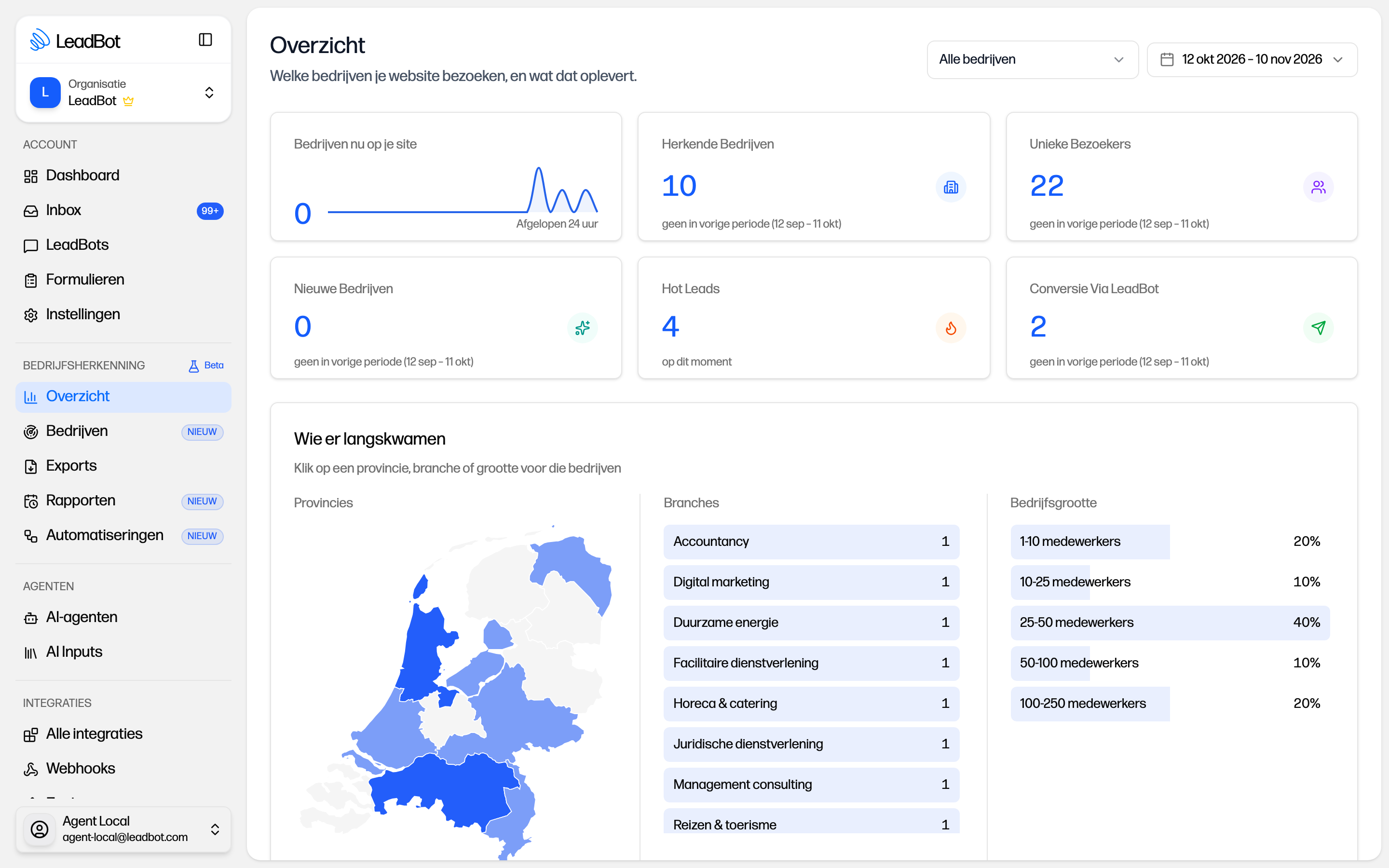
The new Overview shows what your website delivers at a glance: companies currently on your site, recognised companies, unique visitors, new companies, hot leads and conversions through LeadBot. Most figures also include a comparison with the previous period.
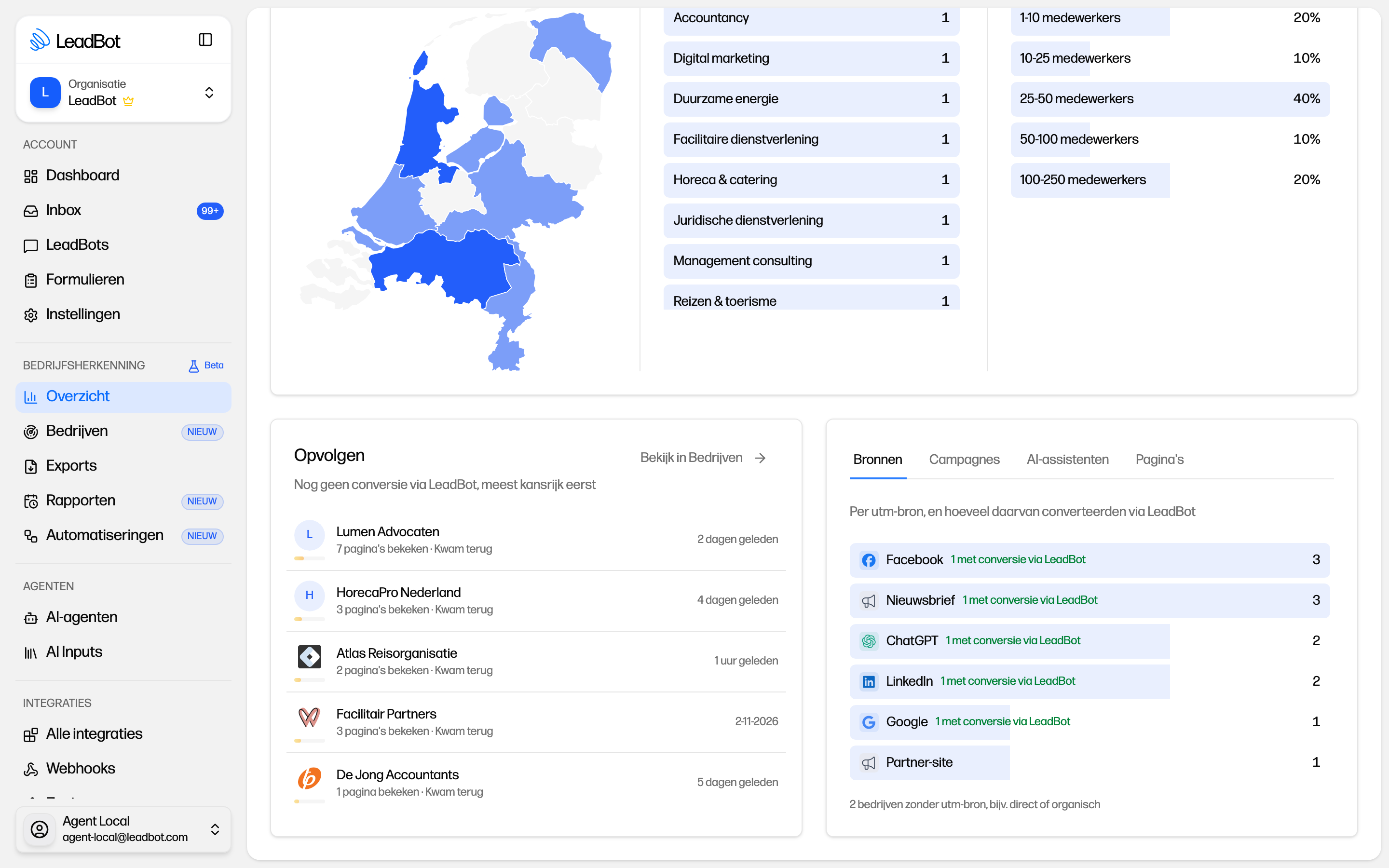
See which provinces and industries your visitors come from and how large their companies are. You also get a list of promising companies to follow up and insight into sources, campaigns, AI assistants and popular pages. Select a period or filter set and the entire overview adjusts accordingly.
2. A hot score that fits your business
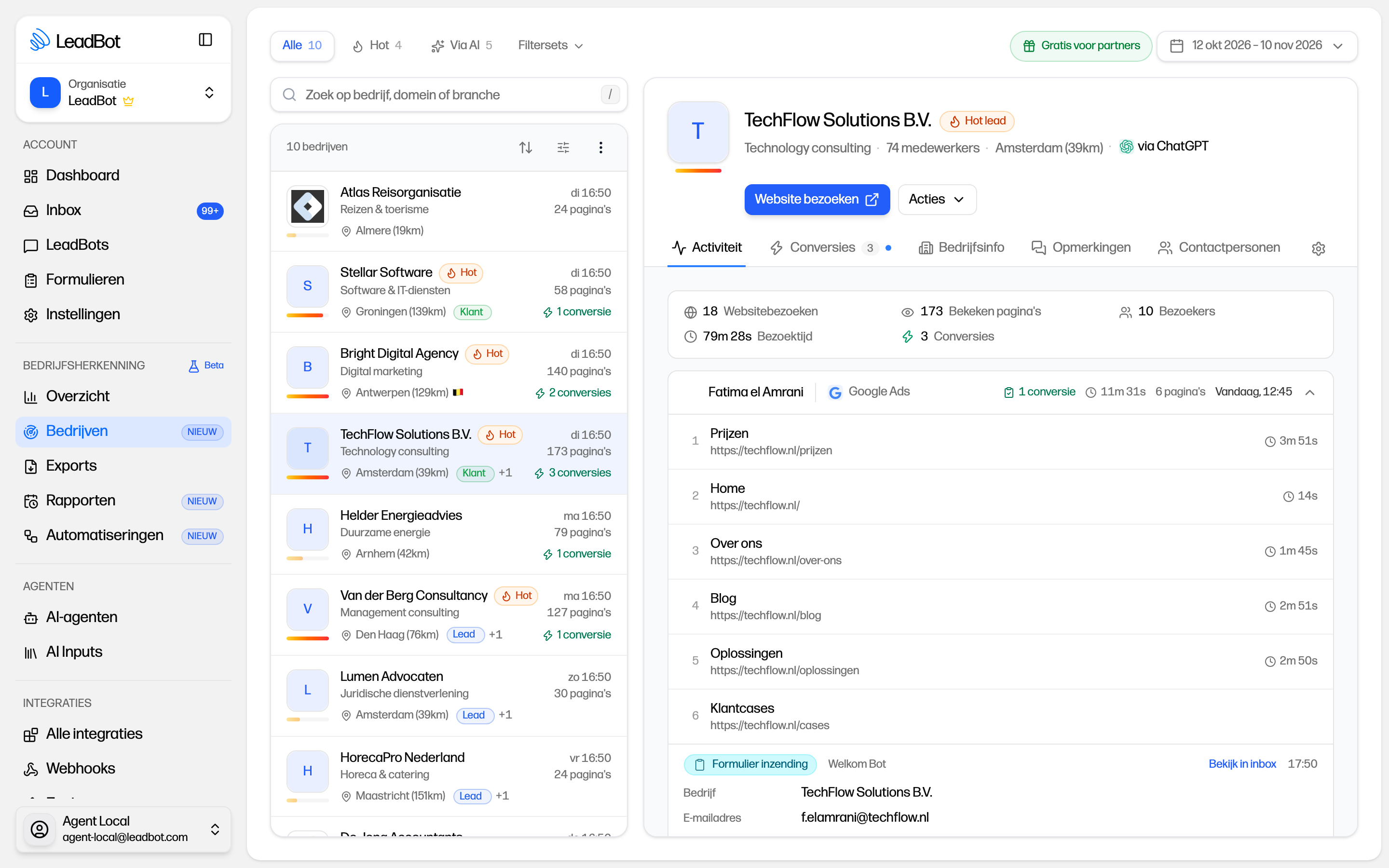
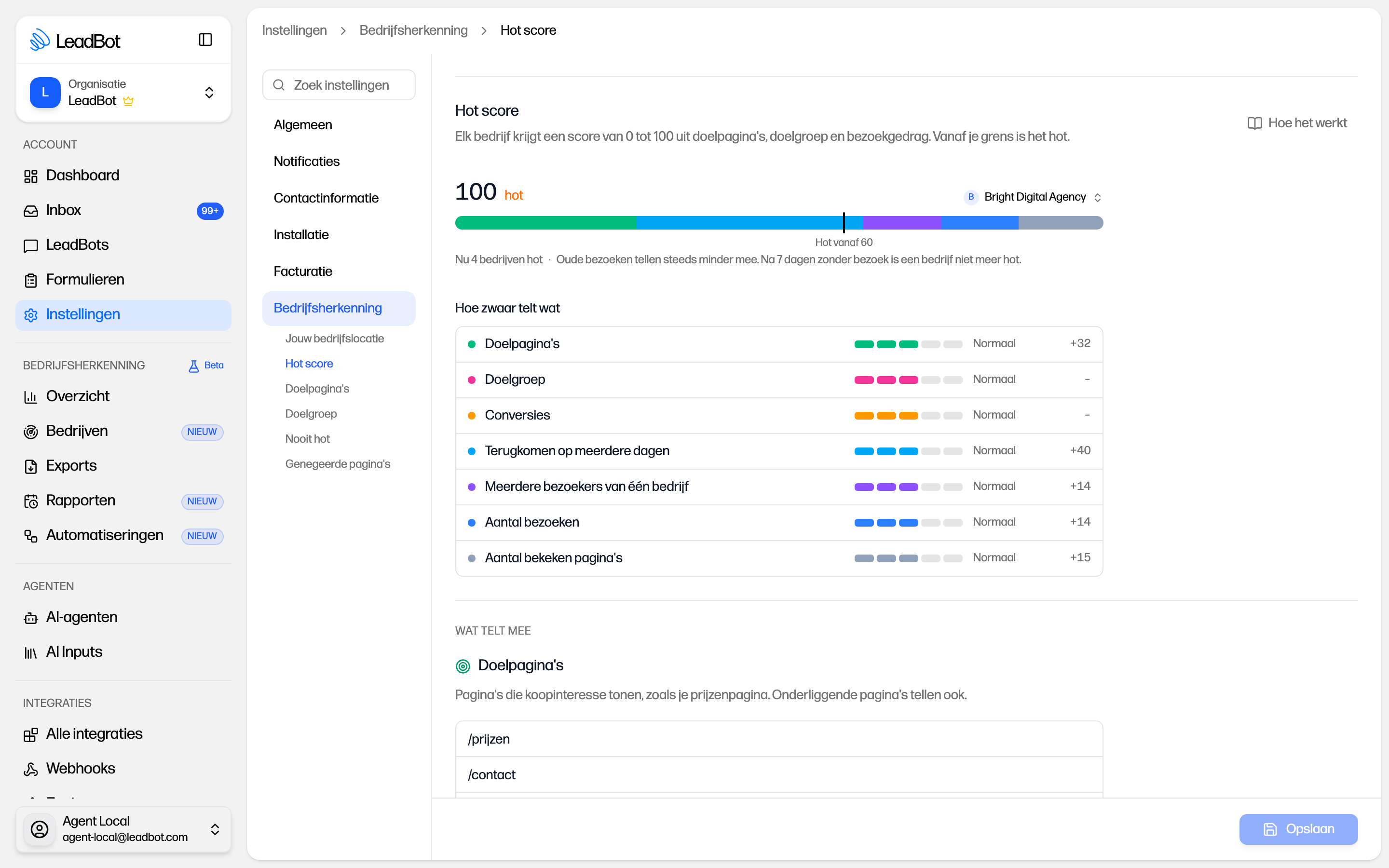
Every recognised company receives a score from 0 to 100 based on its visit behaviour. Signals include returning visits, several visitors from the same company, viewing a pricing page or submitting a form. Recent interest counts more than a visit from weeks ago.
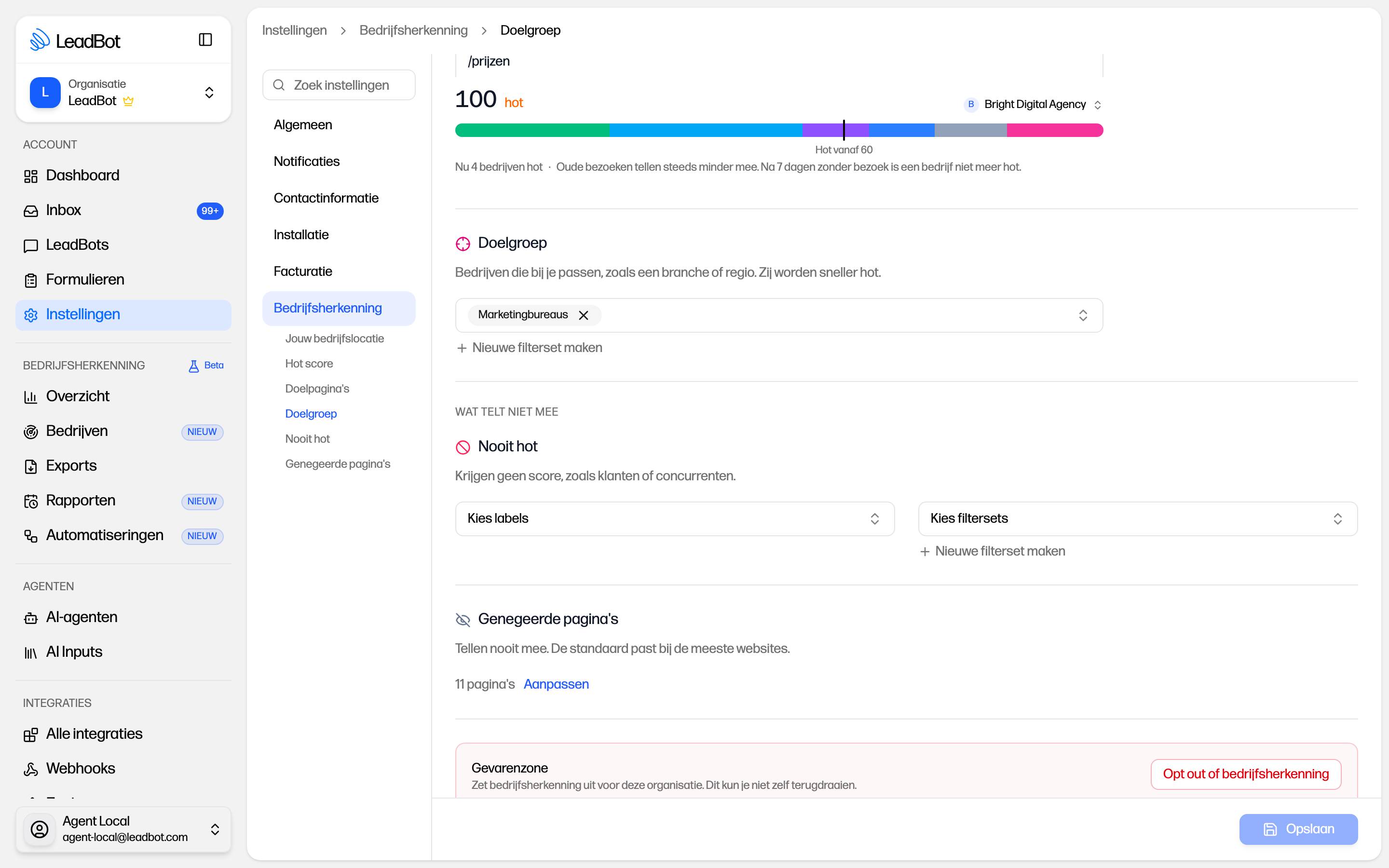
By default, a company becomes a hot lead at 60 points. The existing calculation remains the starting point, so you do not need to change anything. You can now choose which signals carry more weight and what score makes a company hot. Preview the effect of a change before saving it.
You can also set target pages, exclude existing customers or competitors and ignore pages that say little about buying intent. This prevents a visit to your careers page, for example, from being treated as a sales opportunity.
3. Give your target audience priority
Not every company is a potential customer. Choose one or more filter sets as your target audience, such as marketing agencies in your region. Active companies that match receive extra points and become hot sooner. They still need to actually visit your website: matching your audience alone is not enough.
4. Receive relevant companies automatically by email
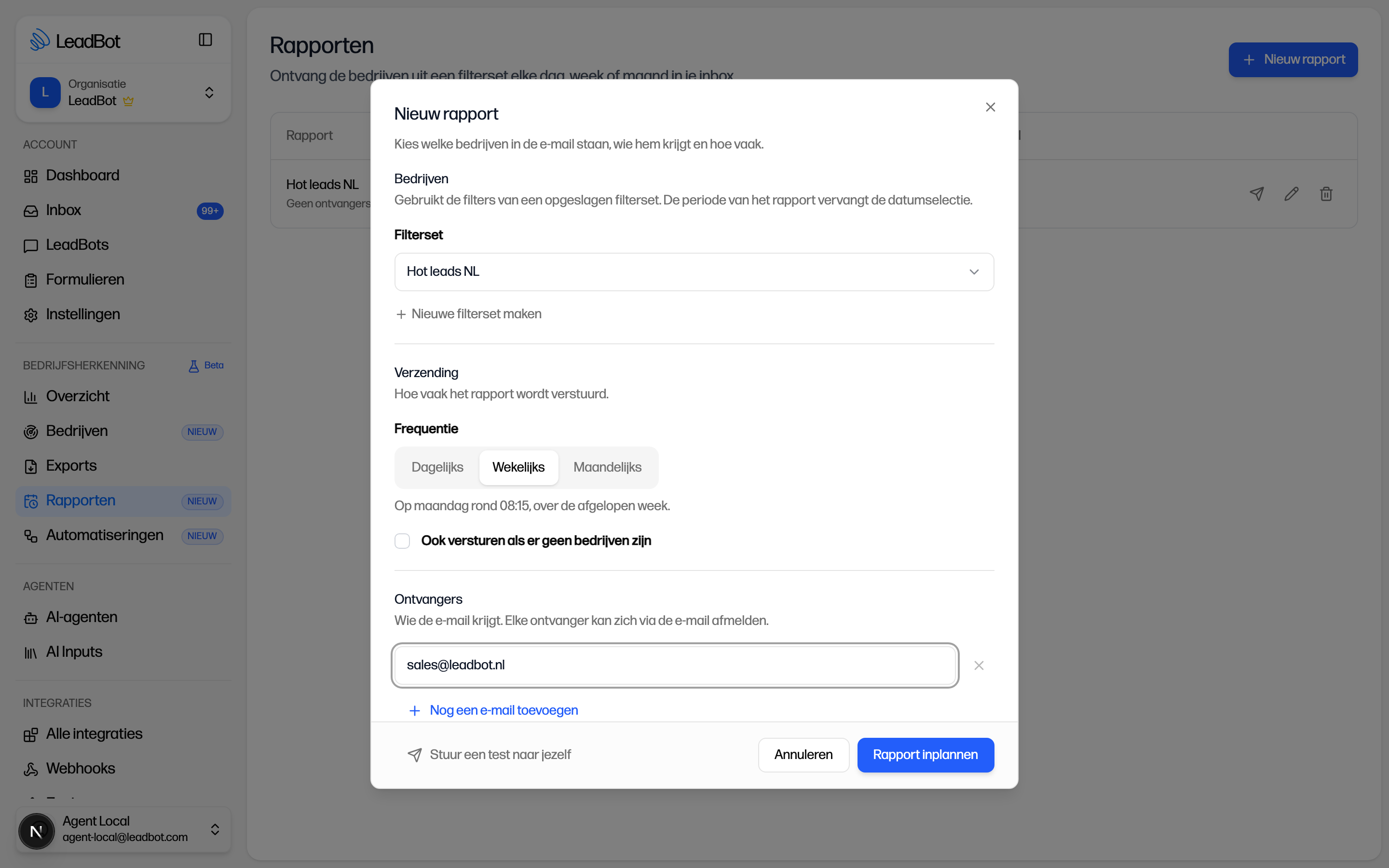
Reports deliver the companies from a filter set to your inbox daily, weekly or monthly. You choose the recipients, including colleagues without a LeadBot account. Optionally include a CSV or Excel file so your team can start working with the list straight away.
An administrator sets up the report and can first send a test to themselves. Make follow-up a regular habit without requiring everyone to log in every day.
5. Let automations do the work
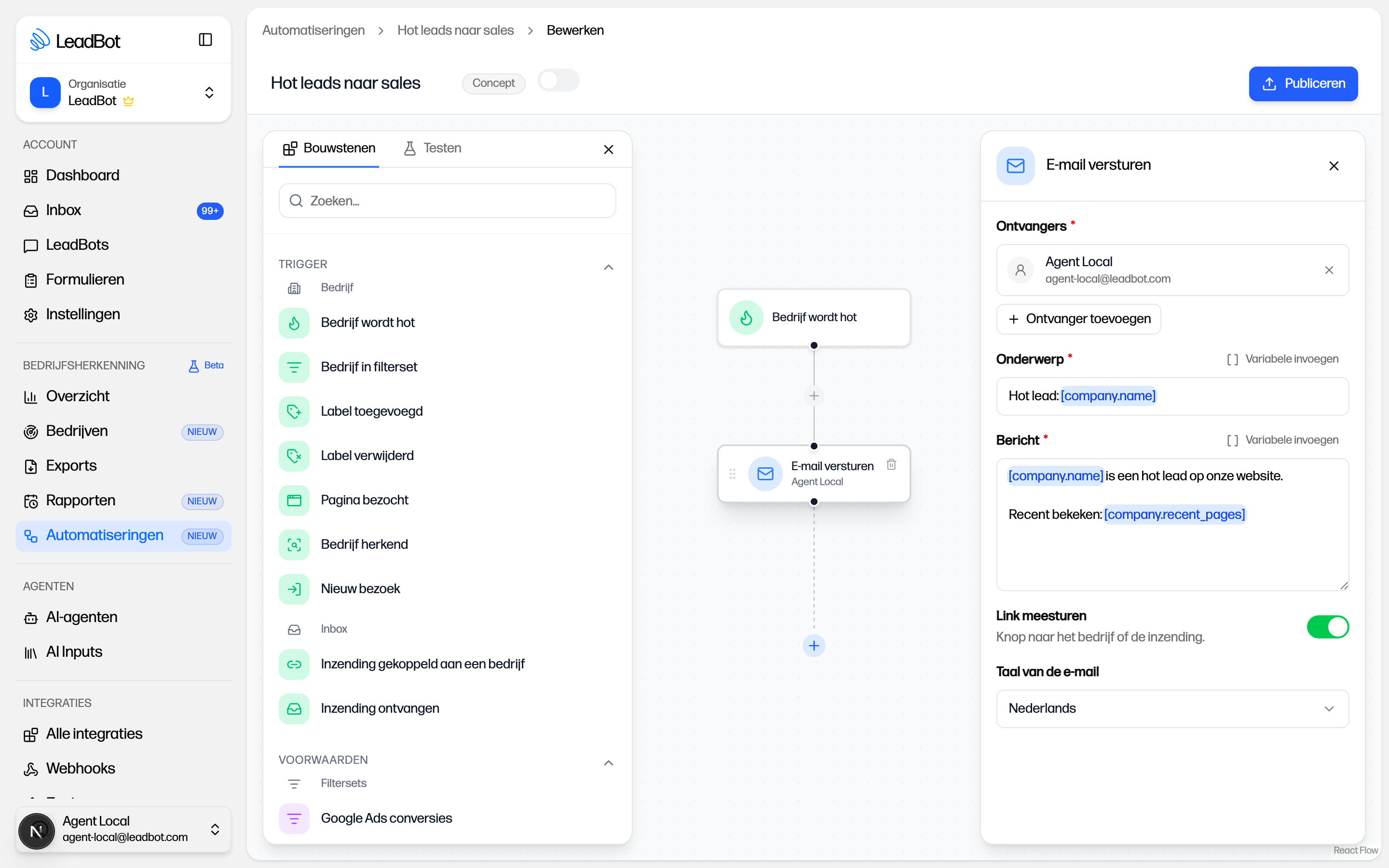
Want to respond faster to an interesting visitor? Automations let you create rules that perform an action automatically. For example, email sales when a company becomes hot, add a label when it visits an important page or send company details to your CRM through Zapier or a webhook.
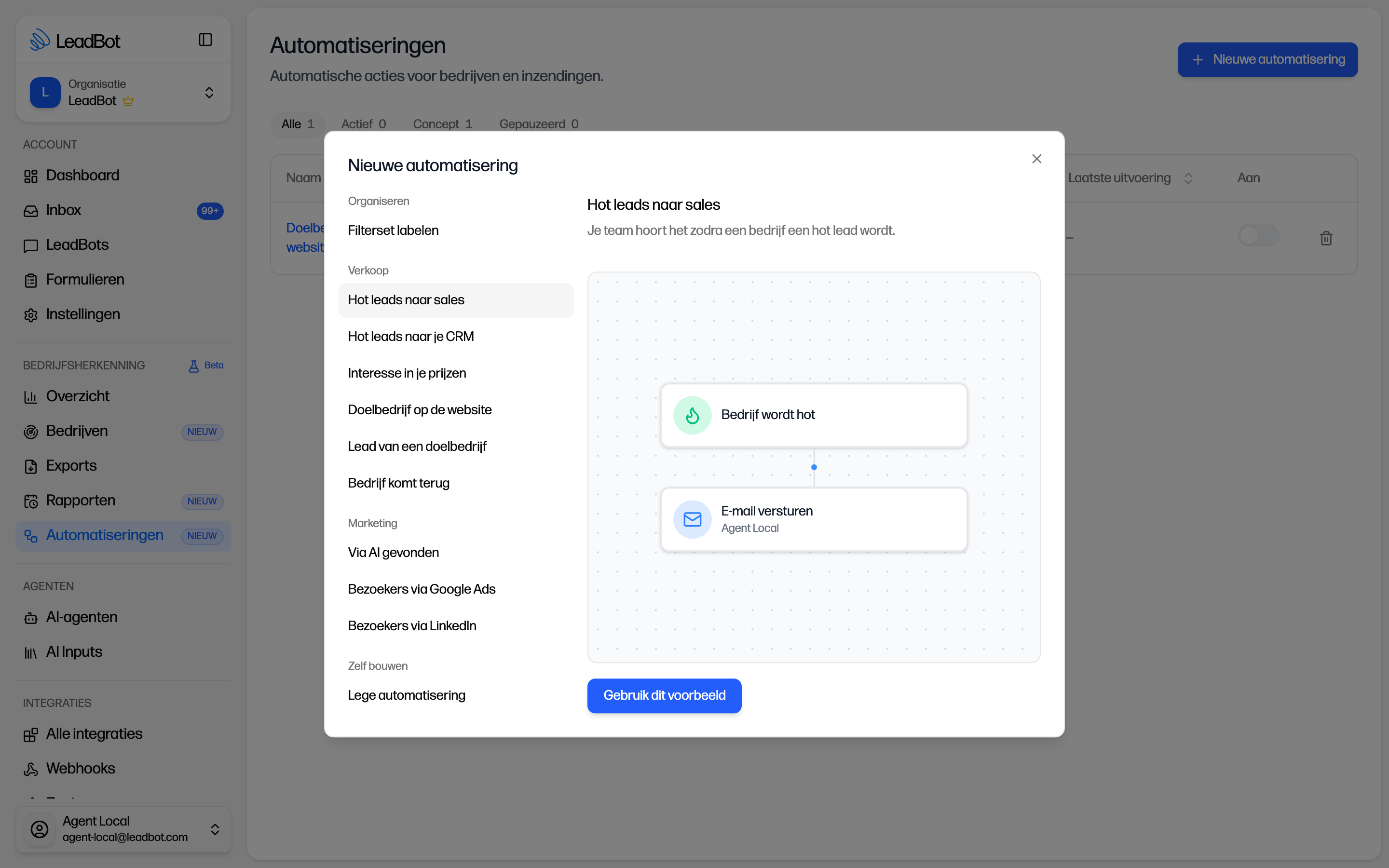
Start with a template, such as “Hot leads to sales”, and adjust its conditions and actions. Decide how often a company can run through the automation. In the editor, test a step and see how many companies match your conditions before publishing.
6. Stay in control of your filter sets
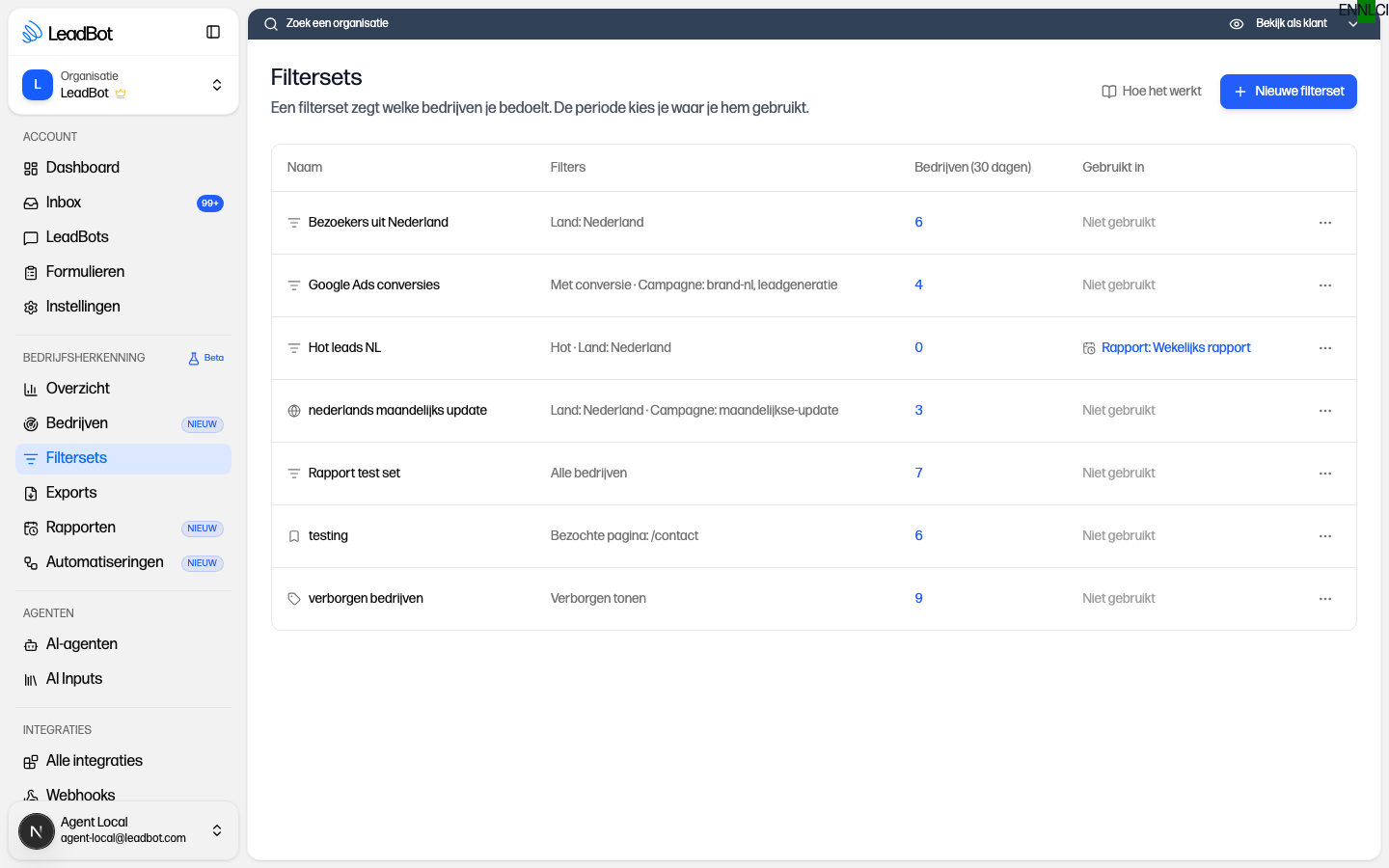
Filter sets have their own page. See which filters you have saved, how many companies matched them over the past 30 days and where each selection is used, such as in a report, an automation or your target audience.
Rename and adjust your selections here. Want to delete a filter set? You see the consequences first, such as a linked report also being deleted. This keeps things clear when you work with several target audiences.
7. Find the right contacts
Open a company and select the Contacts tab. See who works there and what their role is, with decision-makers listed first. Each company shows up to 25 contacts. This helps you find someone to approach when following up a sales opportunity.
Initially, you see the first name, surname initial and role. Click Show email address to reveal the full name and email address. If a LinkedIn profile or phone number is known, that appears too. The requested details remain visible to your entire team for 30 days. After that, you can request them again.
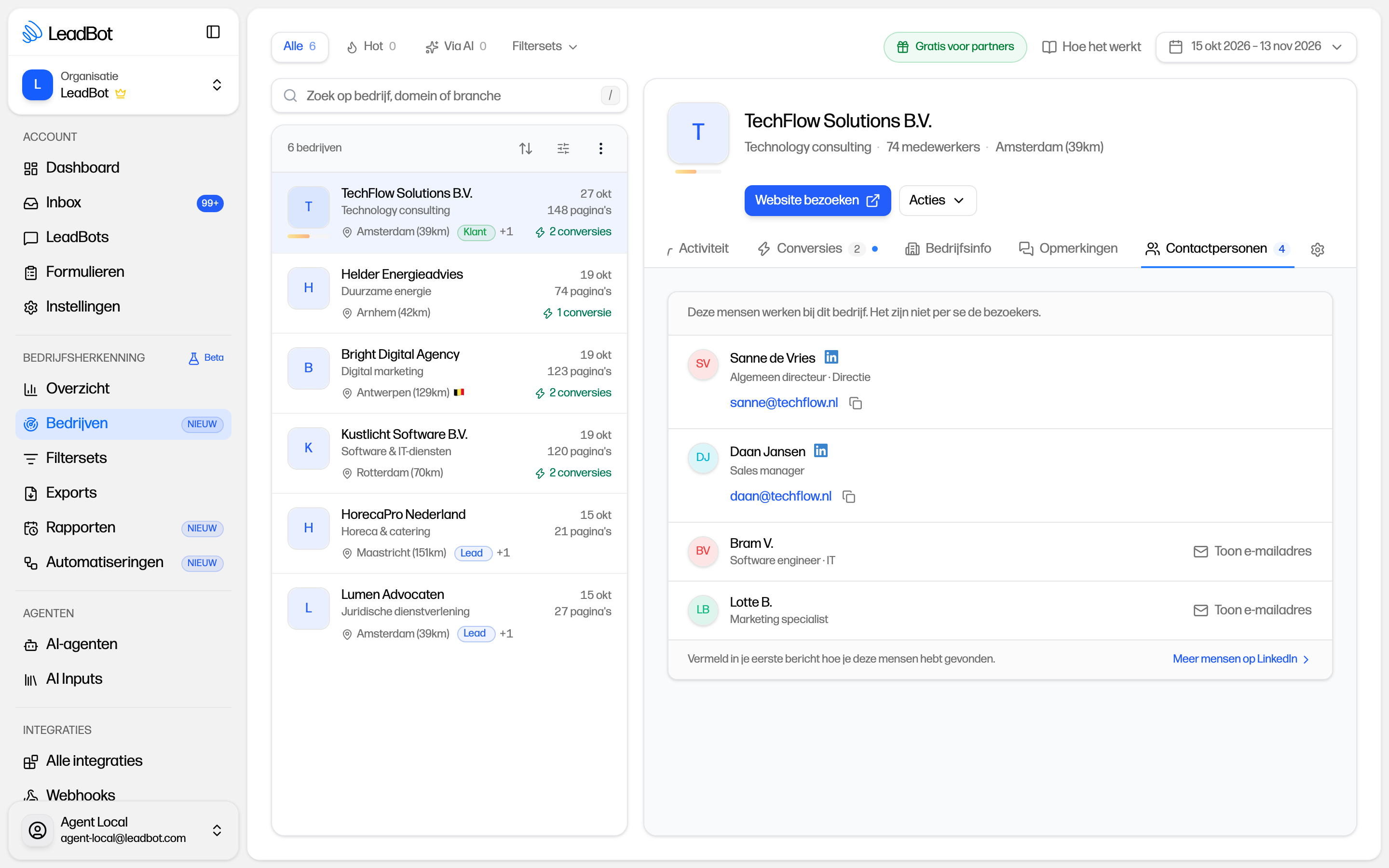
A contact is not necessarily the visitor. This tab shows people who work at the company, not who visited your website. Explain how you found the person in your first message. Contacts are not included in exports, Zapier or automations.
Contacts are not available for every company. No contacts are looked up for sole traders, companies without a website or generic email domains such as gmail.com. Small companies do not always return results either. Some email addresses are inferred from a company's email pattern and are not verified, so an address may be incorrect. Read more about contacts.
What does this mean for you?
All features belong to the company recognition add-on. Already using it? You can use the new capabilities right away. Your existing hot-score settings stay the same by default. Without an active add-on, these features are locked and you do not receive hot leads. If your add-on is temporarily on hold, automations pause and resume when it is active again.
Not using company recognition yet? See how it works or, as an existing customer, try company recognition free for 14 days. Prefer to explore what it could mean for your website together? Book a demo.
Discover company recognition
See which companies visit your website and turn interest into a conversation.